 ConSprint Help
Logging time
Log the hours you put in, and ConSprint compares them with your estimates and works out your pace. Use the build timer, or log time afterwards.
You can log time on any step, or on a mission or objective that has nothing under it yet.
The build timer
Start it when you sit down, stop it when the glue dries.
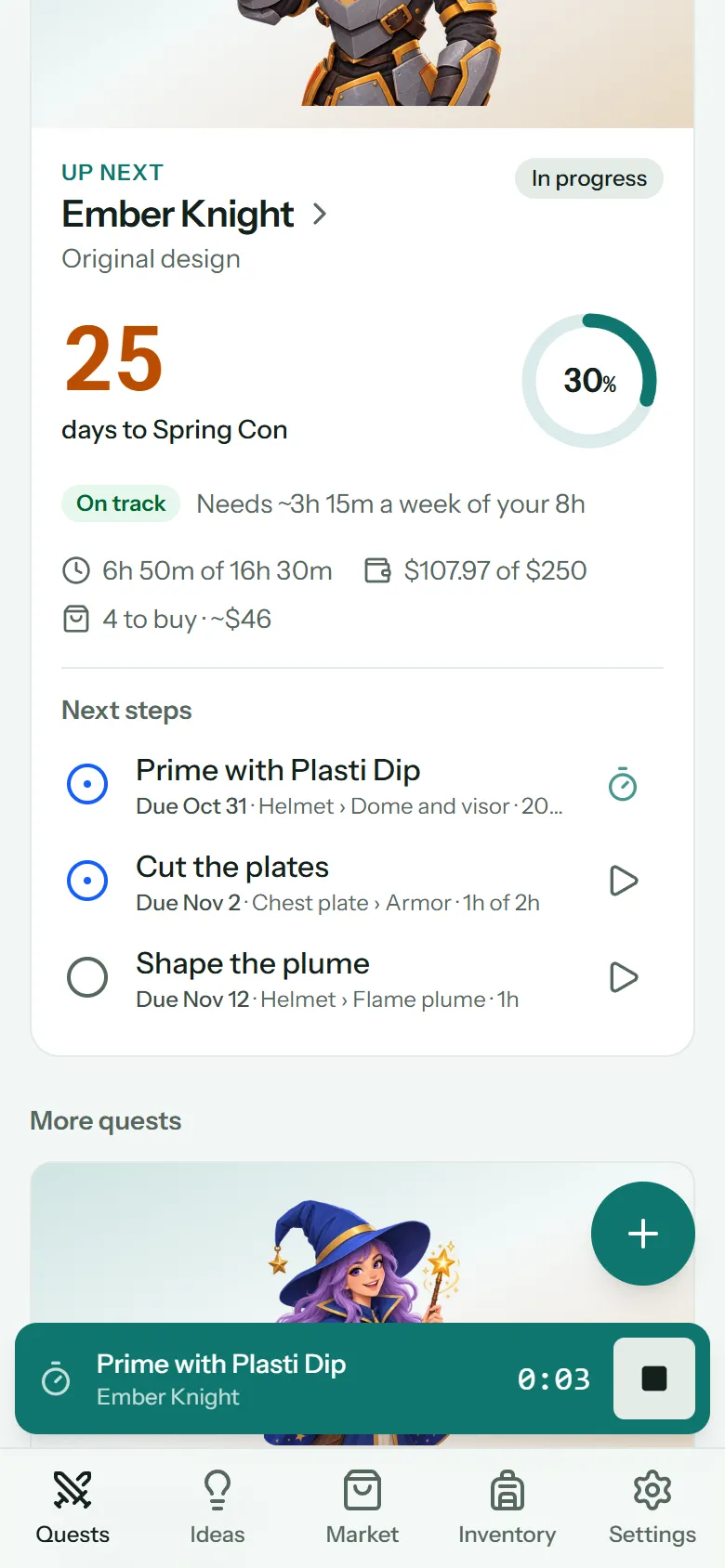
- On the dashboard, tap ▷ next to one of your next steps.
- Or open a step's details, go to the Time tab and tap Start timer.
A bar with the step's name and the running time stays at the bottom of every screen. Tap ■ to stop it, and the time is logged on that step.
Tip
The timer keeps running on our end, even if you close the app or switch devices. Start it on your phone, stop it on your computer.
Only one timer runs at a time. Starting a timer on another step stops the one running and logs its time first.
Log time by hand
Forgot the timer? Open the step's Time tab:
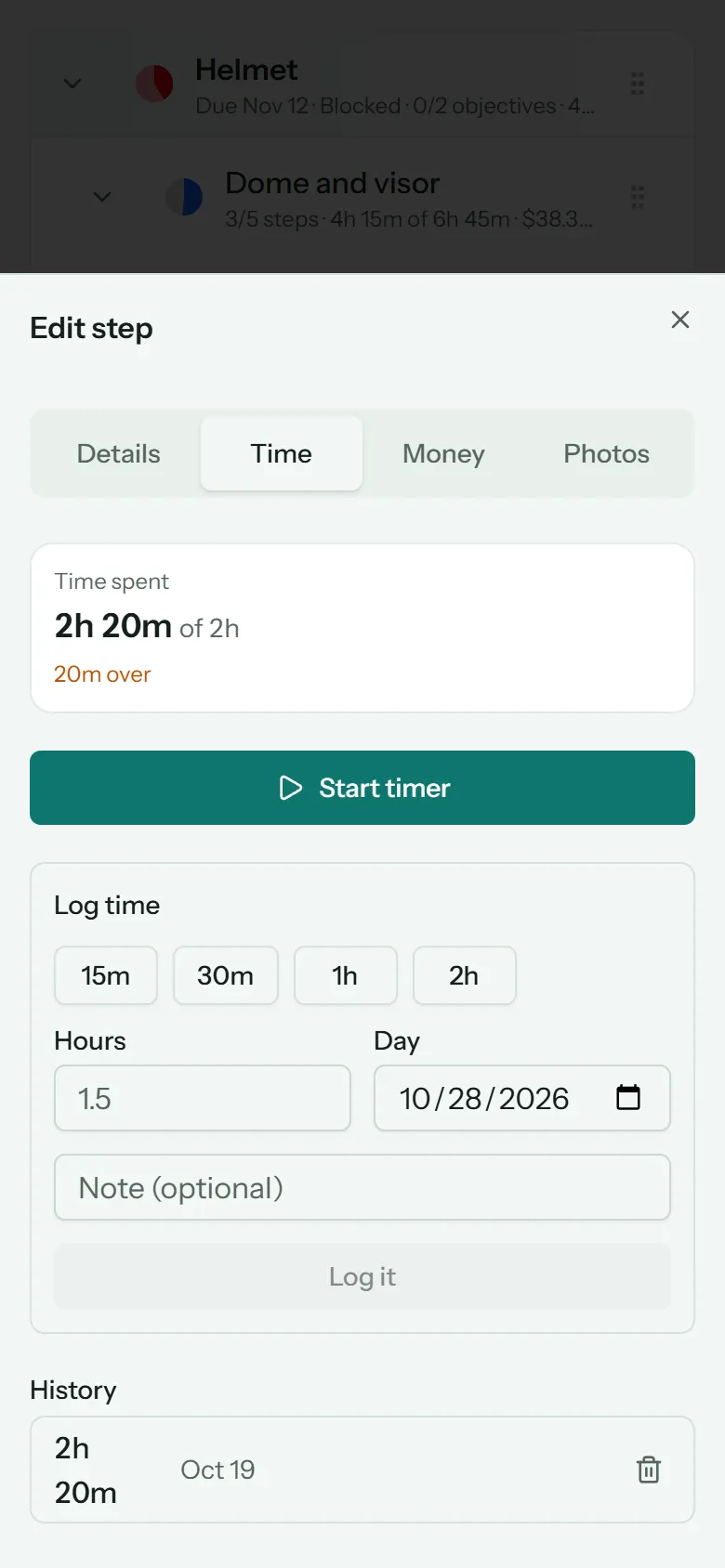
- Tap 15m, 30m, 1h or 2h, or type the Hours (like
1.5). - Check the Day (it starts on today).
- Add a note if you like, then tap Log it.
History
The Time tab shows the step's time so far against its estimate, and a History of every entry, newest first, with timer entries and hand-logged ones together. Delete an entry with the trash button.
The dashboard's logged this week counts every entry from the last 7 days, across all your quests.